Impact Analysis
Impact analysis enables an infrastructure diagram to be drawn up, showing the dependencies and impacts in the event of equipment loss. This can be saved and exported
Note
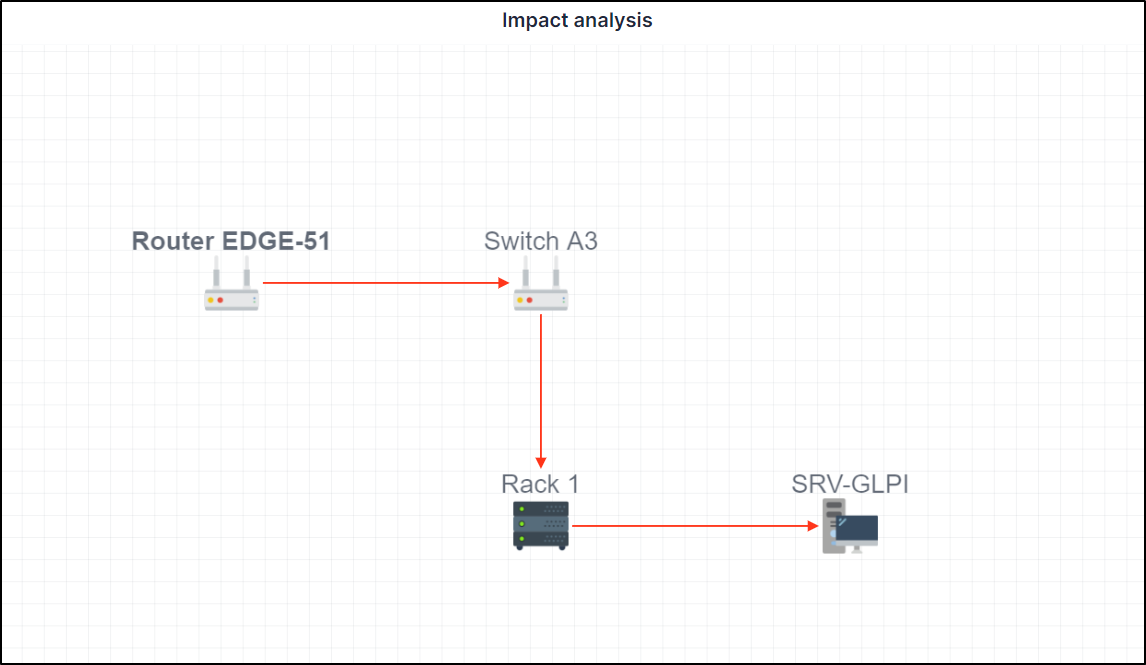
We’ll take a simple example. A router is connected to a switch to which a rack containing a server is attached.
Notions
Two concepts need to be understood:
Impact: represented by default by a red arrow. If this element encounters a problem, it will impact all linked elements.
Dependency: represented by default by a blue arrow. A dependency is an element which will be directly affected by the impact. A dependency does not necessarily affect the elements linked to it.
Note
An important element to understand is that you need to place yourself in the context of the element in question. If you select a switch, the impacts and dependencies will be different if you select an element linked to the switch.
Create an impact analysis
Your equipment must be powered up before you can use the impact analysis.
If we go back to our example given above, we’ll start from the 1st item, i.e. the router.
Go to Assets > Network devices
Select the network hardware you require
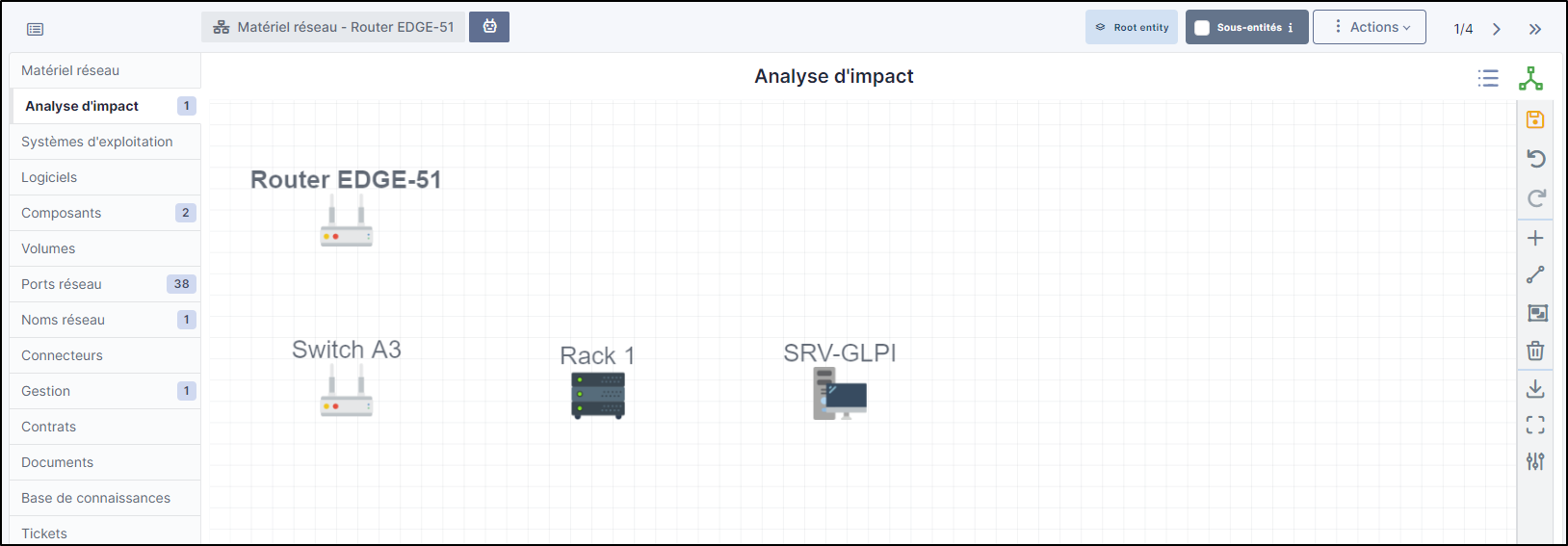
In the impact analysis tab, the hardware you are on will appear
On the right-hand bar, click on +
The list of categories appears, choose the one that suits you (here network hardware to link our switch to our router)
Drag and drop the hardware you want.
Do the same with all the hardware you want
You’ll get a result like this (depending on how you’ve placed your items)
Adding links
Now that our materials have been placed, we need to add the links in order to check their impact and dependencies (or both).
From the right-hand menu, click on the icon diagonal line
Your mouse will then appear with a +
Hold your mouse over the 1st element, and release the mouse over the element to be linked.
Repeat the operation for all the desired elements
Explanation of links
As mentioned above, you need to understand the context of the selected element. What we see in the diagram above is that all the links are in red. This means that if the router were to fail, all the following elements would be affected.
If we position ourselves on Rack 1, the behaviour will not be the same:
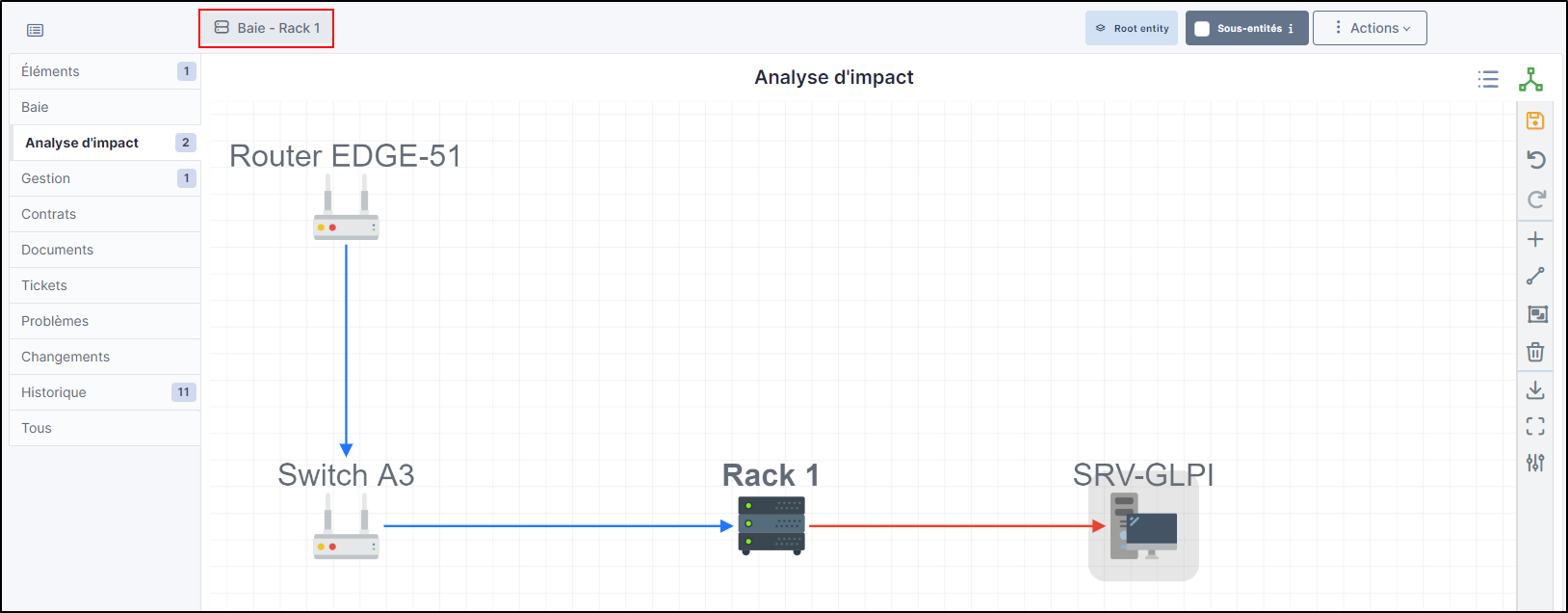
In this example, from the point of view of Rack 1, the only hardware that would impact the infrastructure if it were to fail is SRV-GLPI. Rack 1 depends on Router EDGE-51 and Switch A3. They are in blue (dependency) because they would not be impacted if Rack 1 were to experience a problem.
Dependency and impact on the same hardware
We can add a router to our example, which will be linked to the 1st original router:
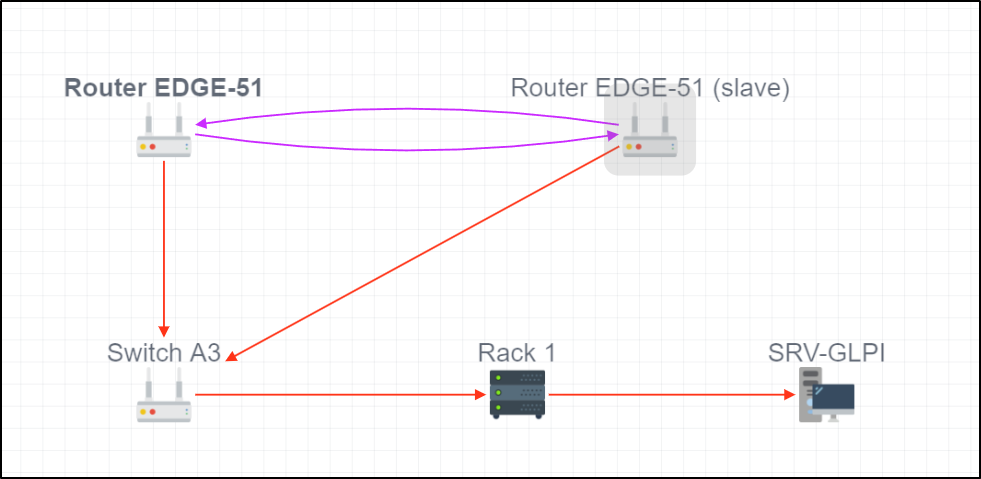
To do this, create a relationship in one direction and then in the other using the diagonal line option seen above.
The purple arrows mean that they are dependent on each other and that they would both be affected if one of them were to encounter a problem. They are therefore both dependent and impacted.
No impact
There is one last type of link, those that have no dependency or impact:
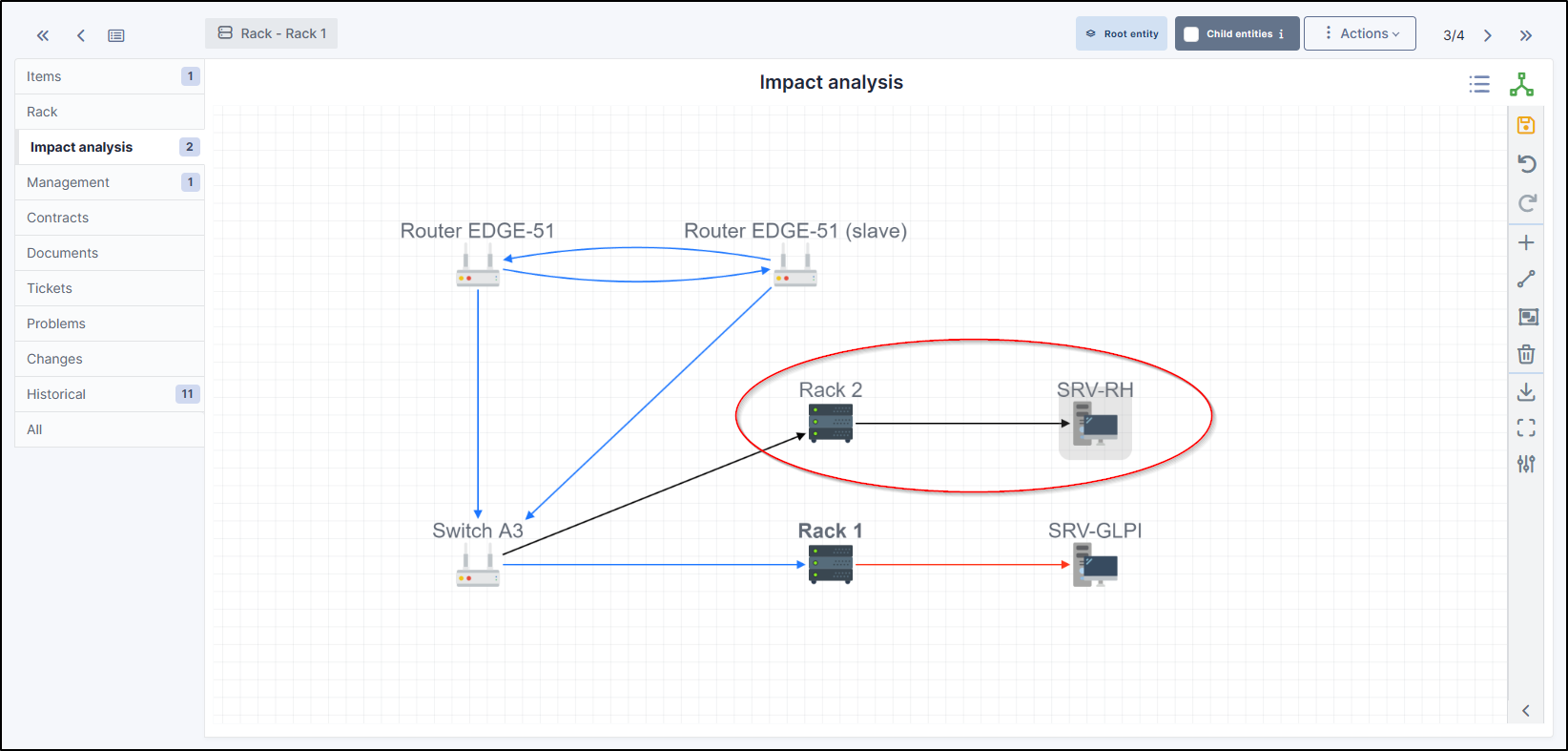
The black arrows mean that from the element you are on, there will be no impact if that element were to fail. In our example, we are on Rack 1. This does not communicate with Rack 2, so there will be no dependency or impact in the event of a failure.
Groups
Groups can be created using the :fontawesome-regular-object-group: icon in the right-hand menu.
Groups allow you to see all the elements that depend on another piece of equipment. You can create a name for the group and choose a background colour.
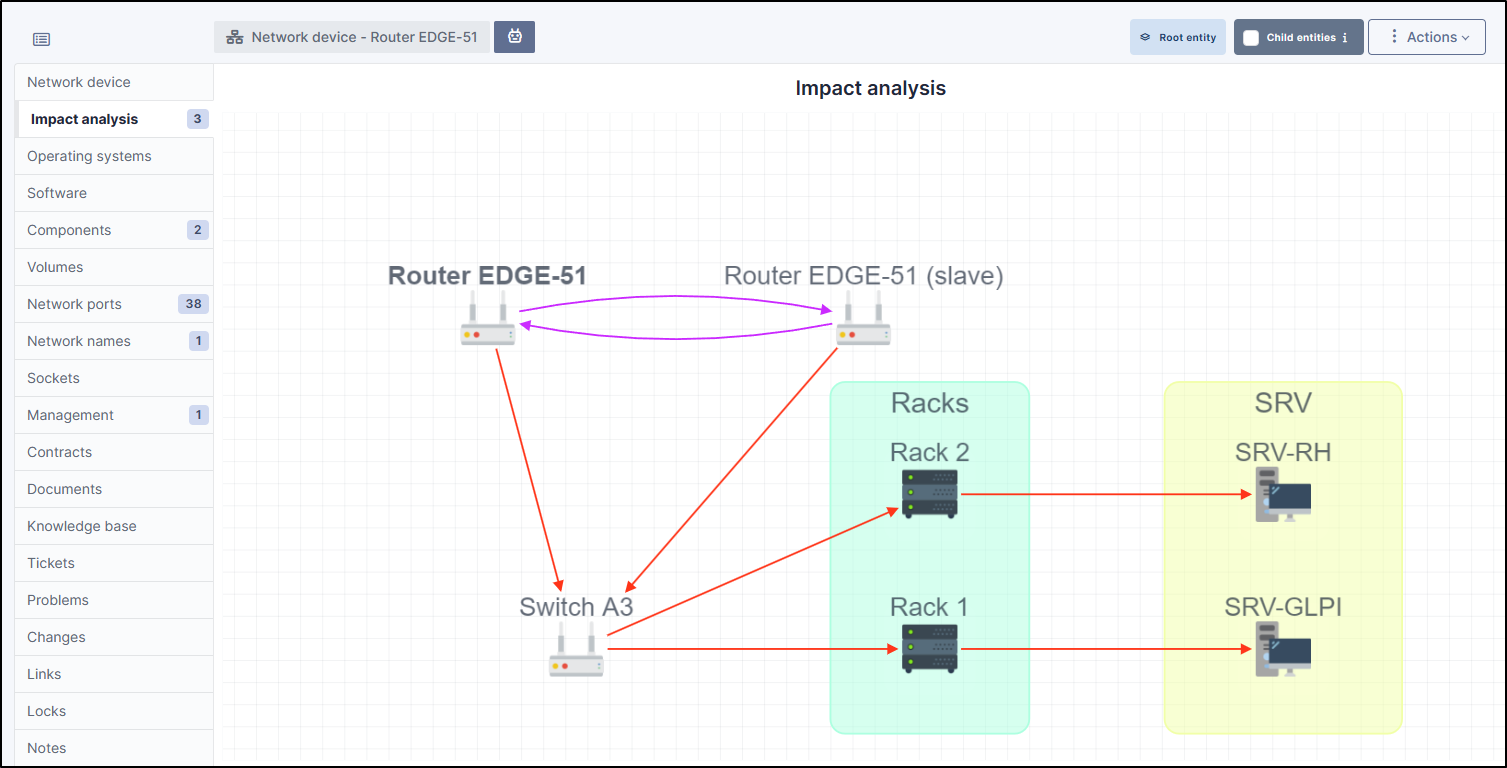
To delete a group, right-click on it and select delete. This only deletes the group, not the items it contains.
Save your impact analysis
Remember to save your project with the floppy icon
Deleting elements
You can delete an element using trashbin icon. This deletes the element and the link.
Download your project
You can download your impact analysis using the downloading icon. The download format is PNG.
Enlarge your analysis
Use the maximize icon to make your analysis full screen.
You can also use your mouse wheel to zoom in and out.
Link configuration
You can configure certain options using the adjustments icon:
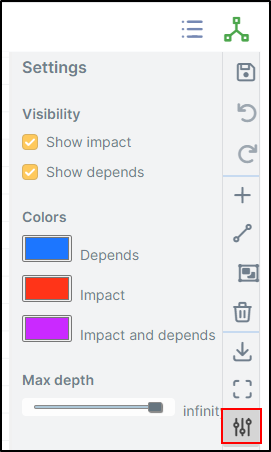
Visibility
In visibility, you can choose to show only impacts and/or dependencies.
Colours
In the colours tab, you can change the colours of dependencies, impacts and impacts of dependencies.
Maximum depth
The maximum depth is the number of elements that can be displayed on your impact analysis. If you select « infinity », there will be no display limit.