Cartridges
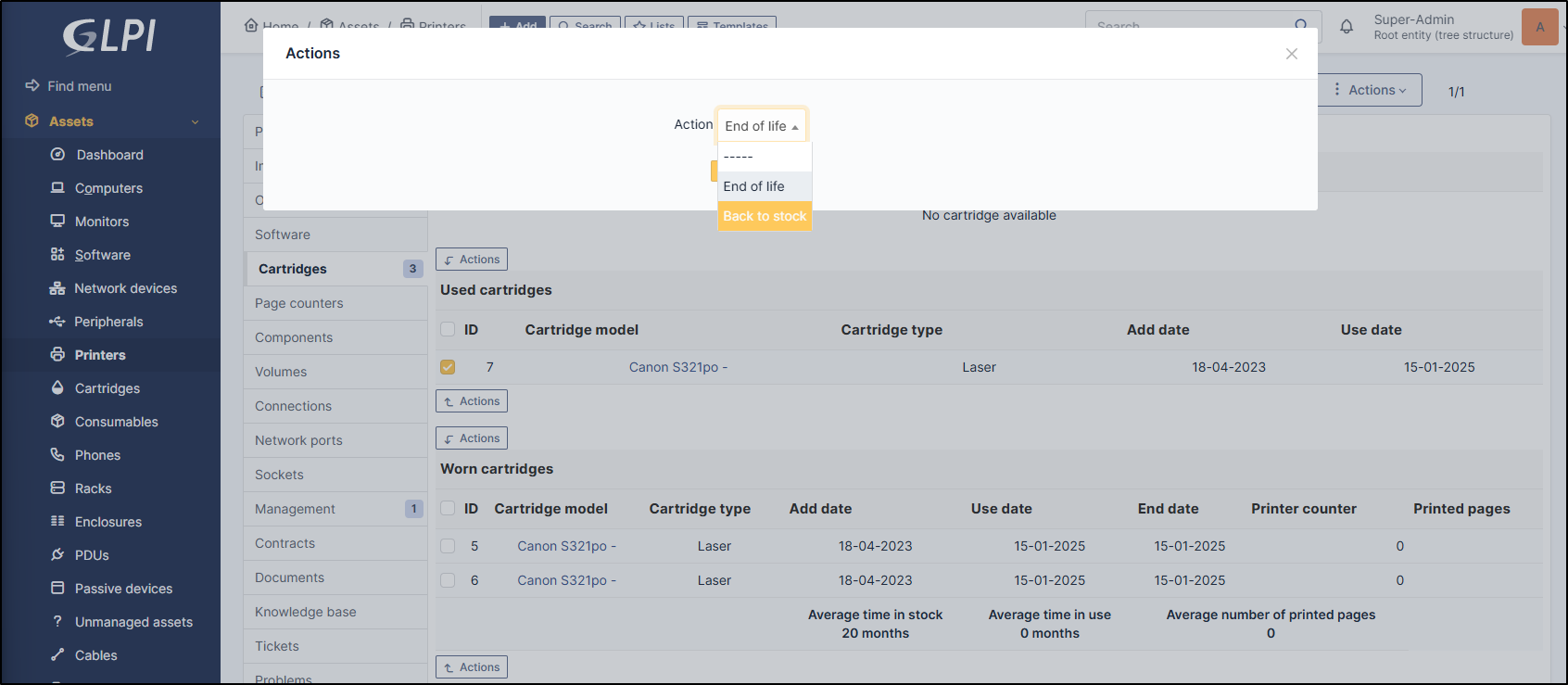
The first table lists the cartridges that are new or in use. The second table lists the cartridges identified as end-of-life.
Add cartridges in new status
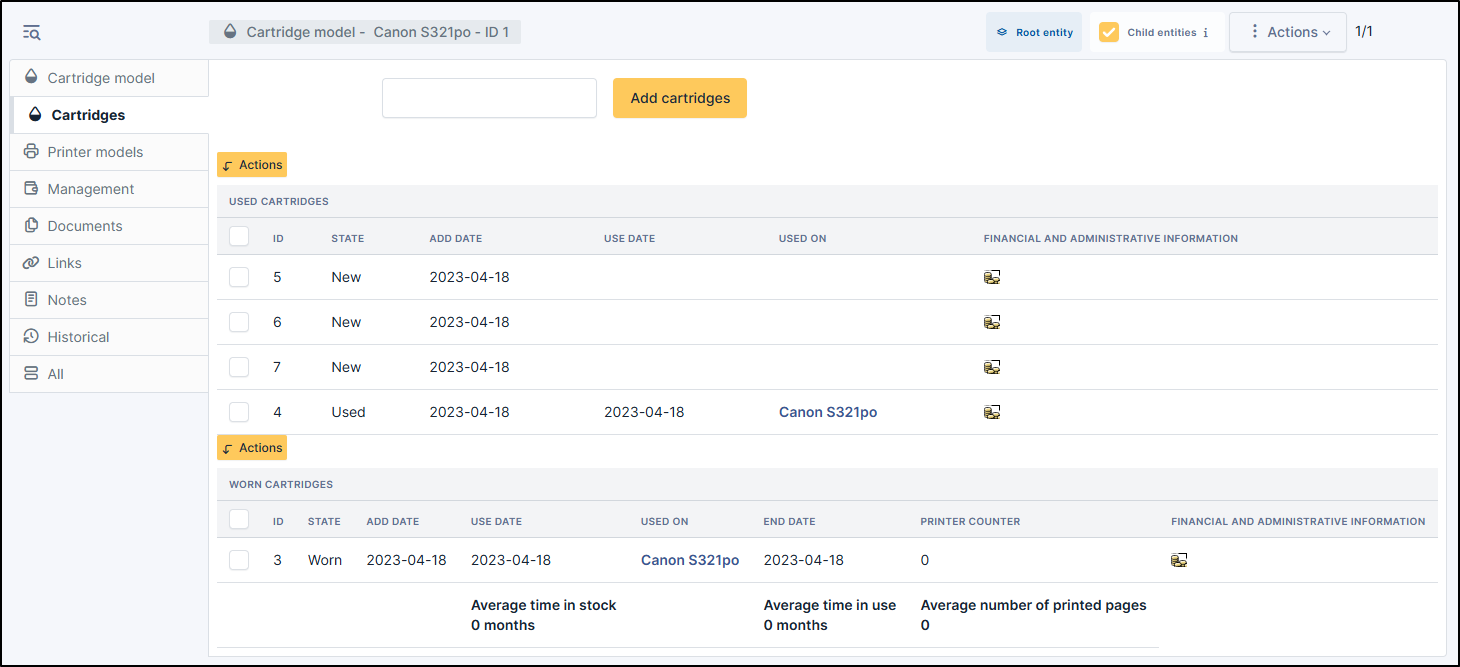
When cartridges is created, you can select numbers of item is needed
click on Add cartridges
Note
You can add one or more cartridges.
Note
The status of the cartridge by default is new
Change a cartridge in used status
To change the status of a cartridge, go to Assets > Printer > Select the printer > Cartridges
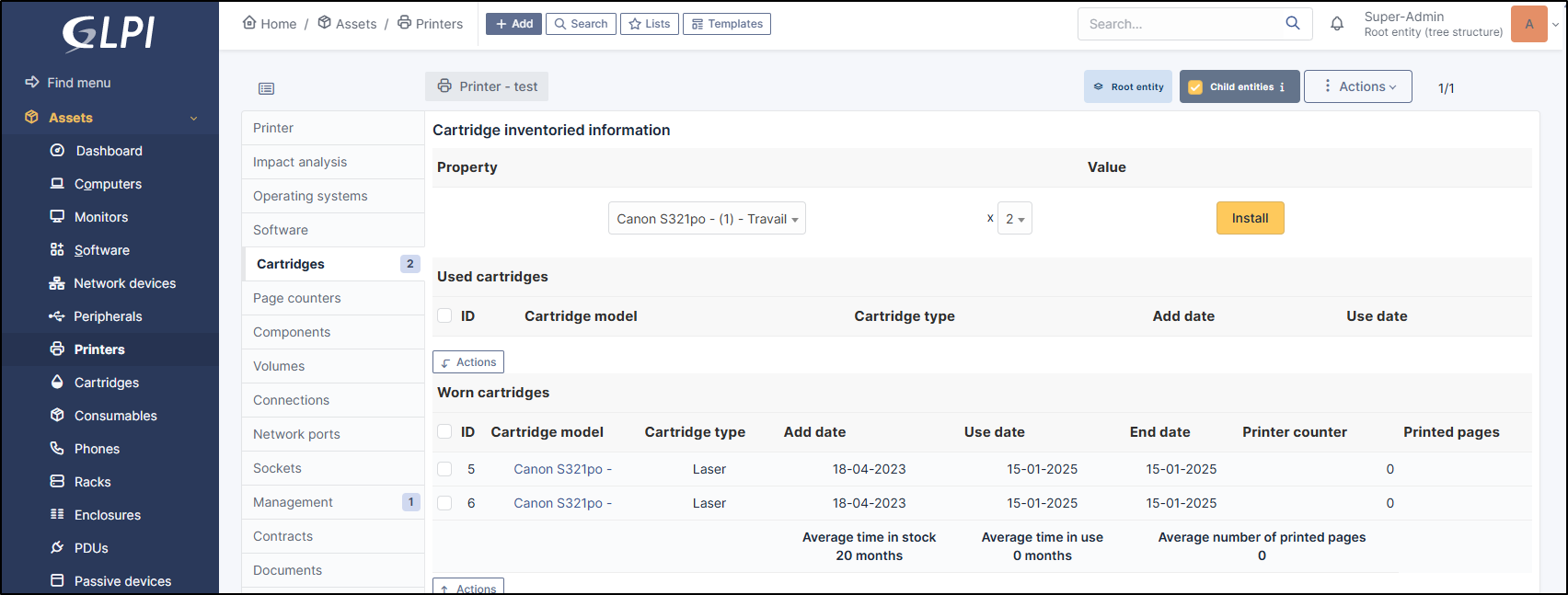
In Property, select the desired cartridge, the number and click Install
Change a cartridge in Worn
To change the status of a cartridge, go to Assets > Printer > Select the printer > Cartridges
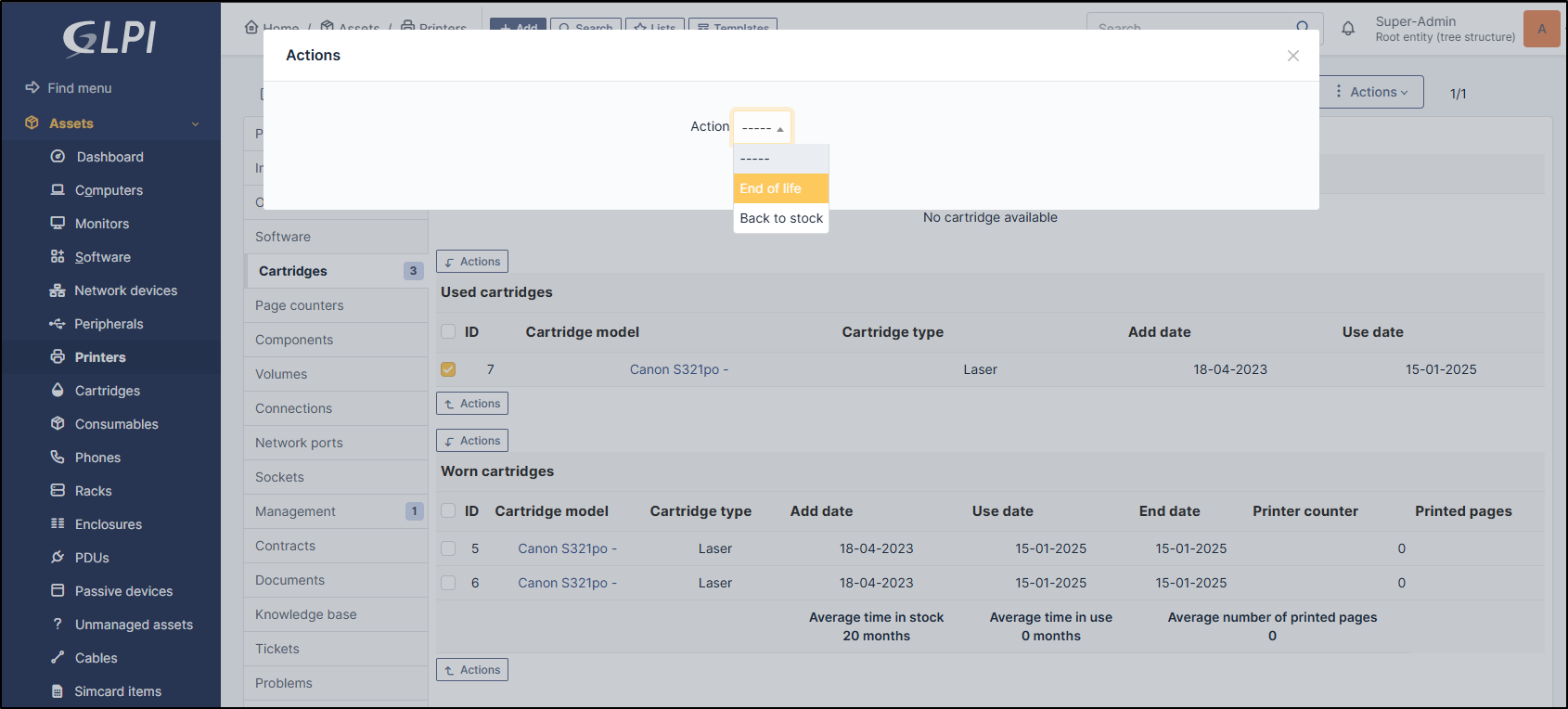
In used cartridges tab, select the appropriate cartridge
use Actions button
Then select End of life
Click on Post
Change a cartridge to back to stock
To change the status of a cartridge, go to Assets > Printer > Select the printer > Cartridges
In used cartridges or worm cartridges tab, select the appropriate cartridge
use Actions button
Then select Back to stock
Click on Post