Approvals
Approvals allow a ticket or a change to be validated (or not) by a third party or a group.
Add a request for approval
In your ticket or change, go to the approvals tab
Start by defining the minimum validation required

You can choose between :
0% - This value is for information only, because even if no one validates, it will not result in a global refusal of the request
50% - If half of the validators approve the request, overall approval is granted.
100% - All validations must be approved for the global status to be granted.
Send an approval request
Click on Send an approval request
You can use Template to send an approval request
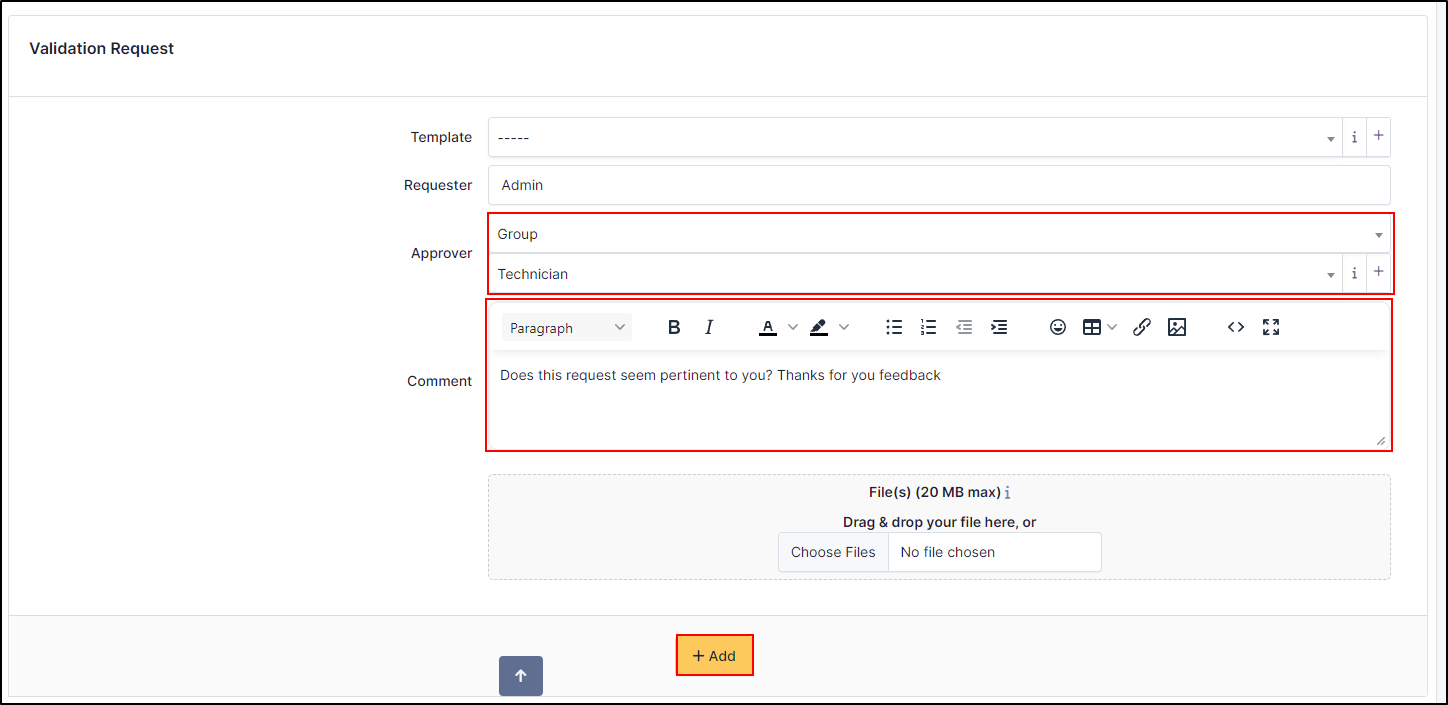
In approver select the type of approver (user, group, group users(s))
Select the user or group required
Enter a comment
You can add a document if it’s necessary
Click on + Add
Note
you can’t select several groups or users at once, you have to make separate approval requests for each group or user
Astuce
If you wish to add certain users to a group, select group user(s) and then select the desired users.

Astuce
You can add a group if the required group does not exist. Click on + in Approver. Go to Groups for more information

States
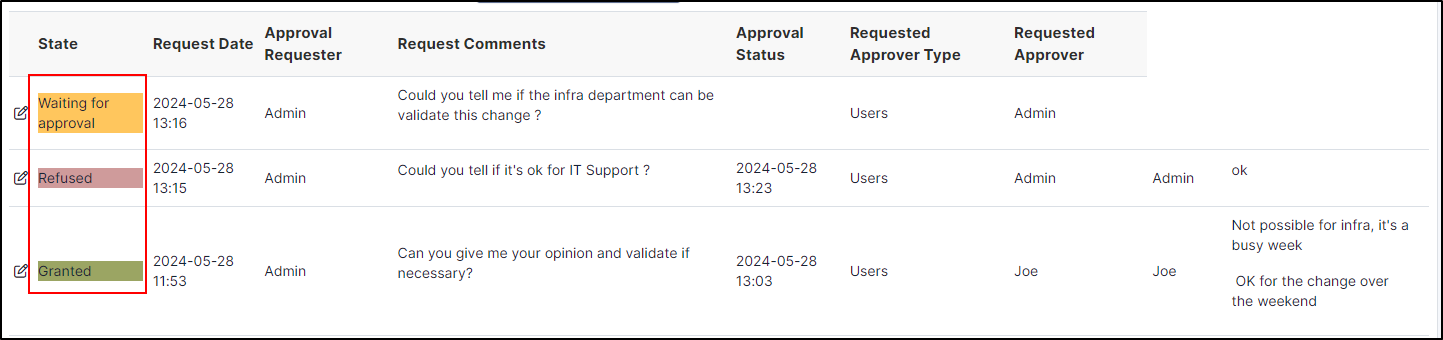
There are 3 different statuses:
Waiting for approval
Refused
Granted



Approvals can also be viewed in a list at the same location
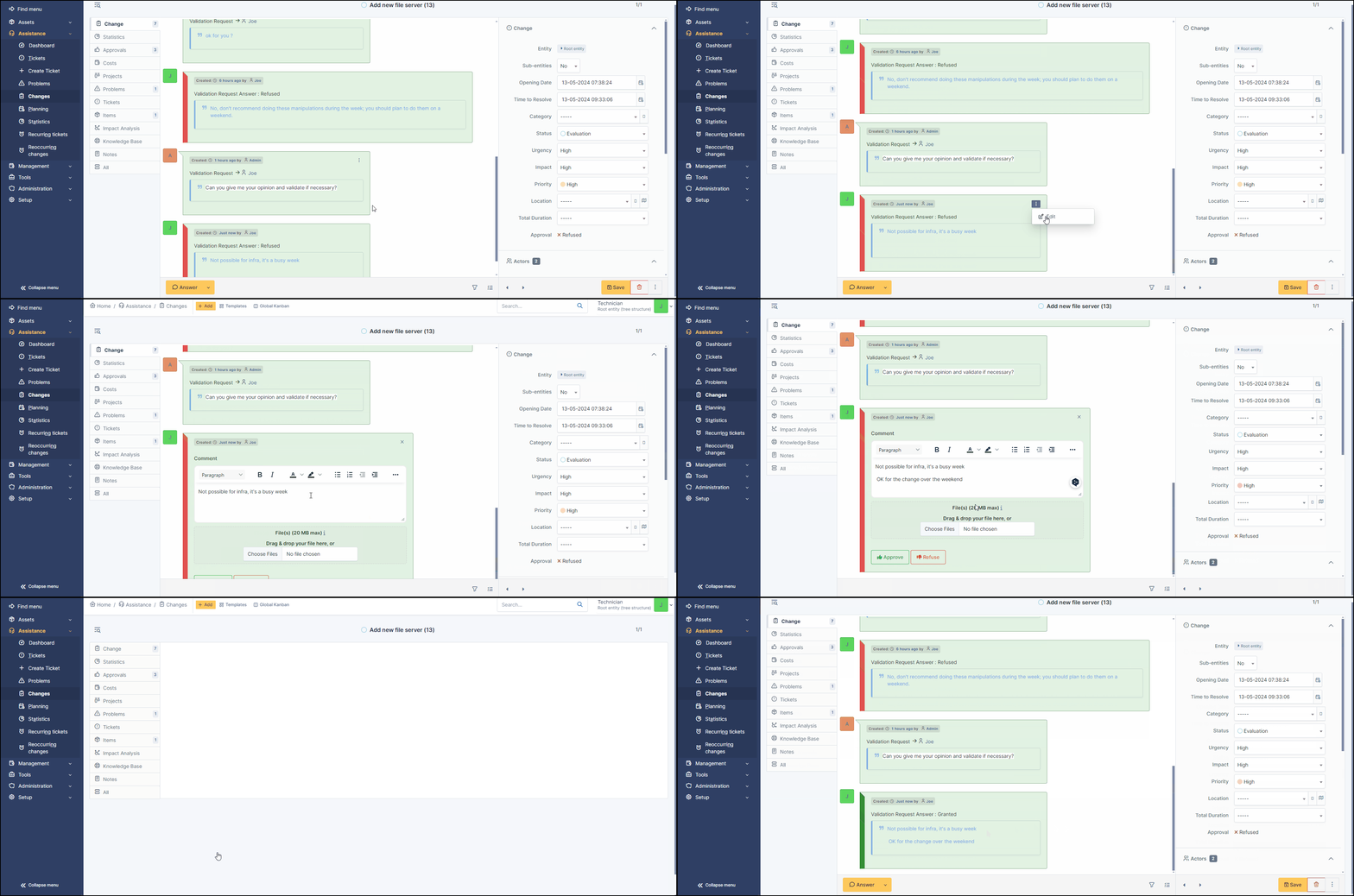
Users can change their approval status, whether previously granted or denied. This can be done directly from the ticket or change
How to change state
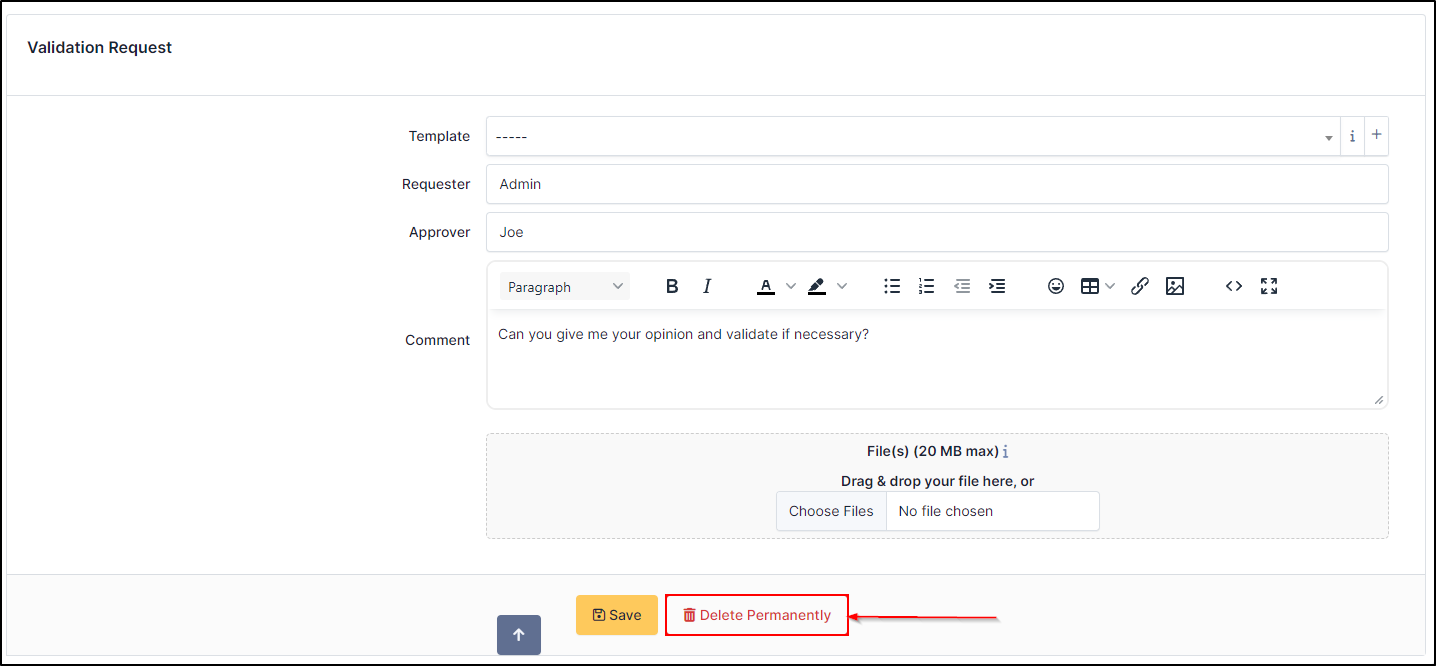
It is also possible to delete an approval. Please note, however, that this does not change the final status, so you will need to resubmit one or more requests for approval to obtain a final result.