Documents
Documents management in GLPI allows to store digital documents or web links sorted under different headings.
A document is described by a name and an comment and can be associated to a heading.
The file corresponding to the document can be added in several ways:
From local disk;
Using a web link pointing to a document (image, HTML page, PDF…);
Using a file previously transferred with FTP to sub-folder /files/_uploads/ of GLPI installation
A MIME type can also be given.
Note
Document types authorized in GLPI according to their extension are defined in Setup > Dropdowns > Management > Document types To see the different types of files that can be downloaded, go to this section
Document headings can be hierarchical
The option Blacklisted for import allows to exclude this document from import by collectors; it is useful for signature images, logos…
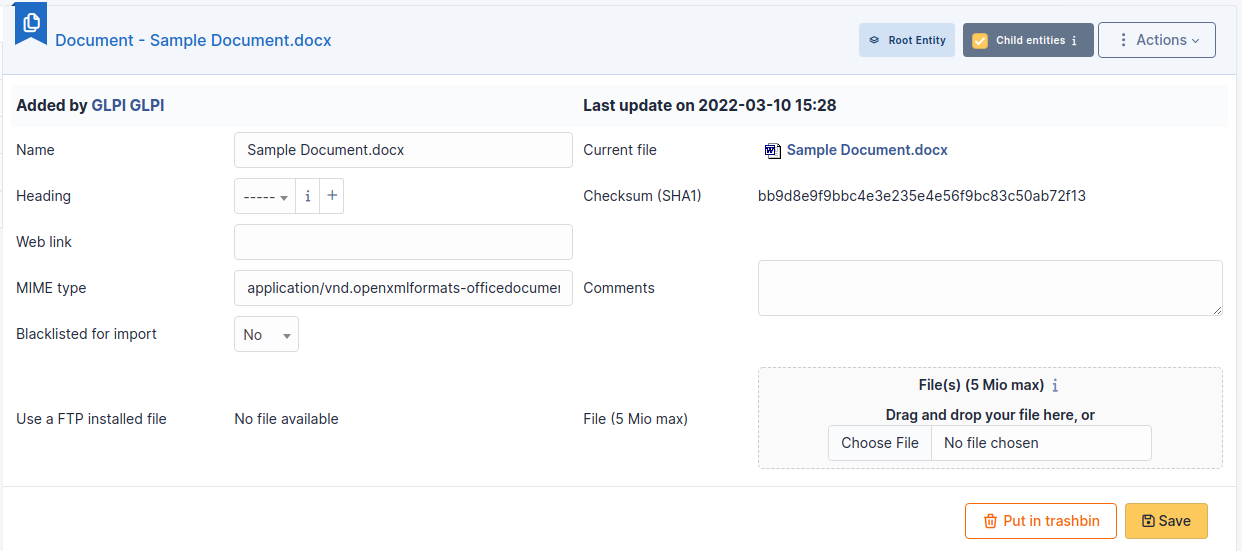
The different tabs
Associated Items
This field refers to all items linked to the document.

It is possible to link several types of objects to GLPI :
list of linkable items
Appliance
Battery
Battery item
Budget
Camera
Camera item
Cartridge Model
Case
Case item
Certificate
Change
Change task
Cluster
Computer
Consumable model
Contact
Contract
Controller
Controller item
Custom Assets
Database instance
Document
Drive
Drive item
Entity
Firmware
Firmware item
Followup
Generic device
Generic device item
Graphics cards
Graphics cards item
Hard drive
Hard drive item
Knowledge base
License
Memory
Memory item
Monitor
Network card
Network card item
Network device
PCI device
PCI device item
Peripheral
Phone
Phone line
Power supply
Power supply item
Printer
Problem
Problem task
Processor
Processor item
Project
Project task
Rack
Reminder
Sensor
Sensor item
Simcard
Simcard item
Software
Solution
Sound card
Sound card item
Supplier
System board
System board item
Ticket
Ticket task
User
Documents
It is possible in GLPI to attach other documents to a document, which explains why a Document has a Document tab.
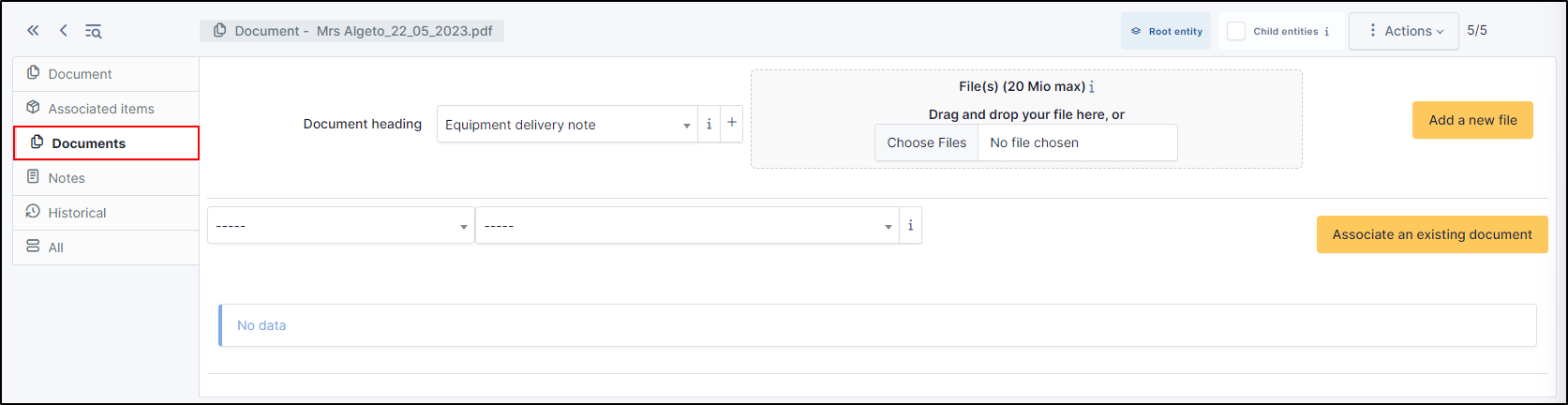
Notes
The Notes tab provides a free text field for storing additional information. Notes are displayed in the order of their creation. You can also add a document
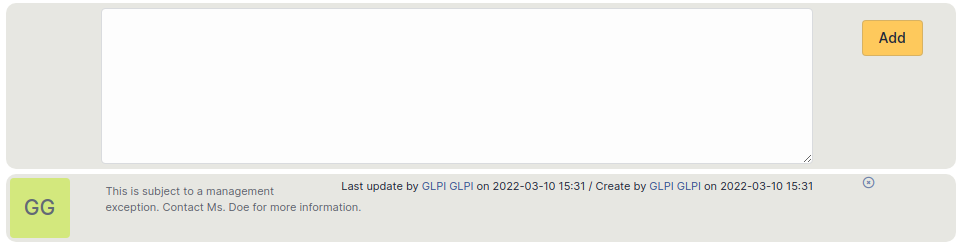
Add a note
To add a note, click on +Add
You can add text and format it to suit your needs
You can add a document to this note
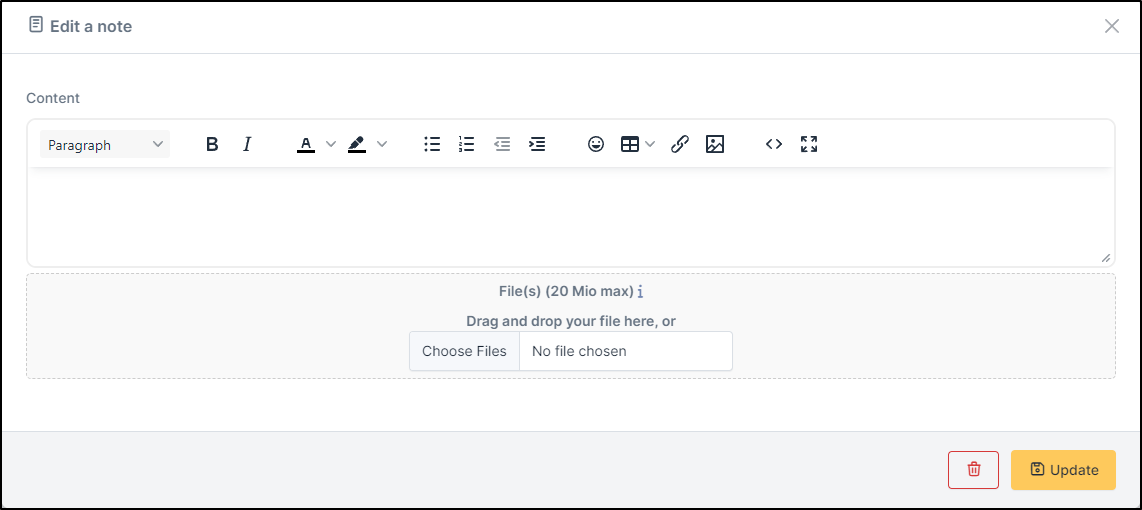
Delete a note
To delete a note, you need to click on delete
You can delete only the attachment by clicking on delete (the option appears when you move your mouse over the attachment)

Astuce
When you delete an attachment, it is not completely deleted, you can find it in Management > Documents
History
The History tab is used to show any changes made to an item. The following information about the changes is available:
ID of the change.
Date and time the change was made.
User who made the change. If this field is not filled, it means that the action was done automatically (For example: automatic inventory update).
Field that was changed.
Description of the change that was made.
The description of the change represents either the difference between the old and the new value (For example with location field: Change HQ to Remote Office A), or the explanation of the action which was carried out (For example: Uninstallation of a software: « Gimp 2.0 »).
Note
For dropdowns or objects with a parent/child relationship, the modification of a child will appear in the history of the parent element.
All Information
For an item, all information is displayed on one page from the All tab. This shows all of the tabs of an object’s form in one view, one below the other.
Downloadable file types
NAME |
EXTENSION |
AUTHORIZED UPLOAD BY DEFAULT |
|---|---|---|
Adobe Illustrator |
ai |
Yes |
AIFF |
aiff |
Yes |
BMP |
bmp |
Yes |
BZip |
bz2 |
Yes |
C header |
h |
Yes |
C source |
c |
Yes |
Comma-Separated Values |
csv |
Yes |
Debian |
deb |
Yes |
DjVu |
djvu |
Yes |
DVI |
dvi |
Yes |
Excel |
xls |
Yes |
Excel |
XML/xlsx |
Yes |
Flash |
swf |
Yes |
GIF |
gif |
Yes |
GIMP multi-layer |
xcf |
Yes |
GZ |
gz |
Yes |
HTML |
html |
Yes |
JPEG |
jpg |
Yes |
JPEG |
jpeg |
Yes |
JSON file |
json |
Yes |
LaTeX |
tex |
Yes |
Midi |
mid |
Yes |
MNG |
mng |
Yes |
MP3 |
mp3 |
Yes |
MPEG |
mpg |
Yes |
Oasis Open Office Base |
odb |
Yes |
Oasis Open Office Calc |
ods |
Yes |
Oasis Open Office Calc Template |
ots |
Yes |
Oasis Open Office Chart |
odc |
Yes |
Oasis Open Office Draw |
odg |
Yes |
Oasis Open Office Draw Template |
otg |
Yes |
Oasis Open Office HTML |
oth |
Yes |
Oasis Open Office Image |
odi |
Yes |
Oasis Open Office Impress |
odp |
Yes |
Oasis Open Office Impress Template |
otp |
Yes |
Oasis Open Office Math |
odf |
Yes |
Oasis Open Office Writer |
odt |
Yes |
Oasis Open Office Writer Master |
odm |
Yes |
Oasis Open Office Writer Template |
ott |
Yes |
Ogg Vorbis |
ogg |
Yes |
OpenOffice |
sxw |
Yes |
OpenOffice Calc |
sxc |
Yes |
OpenOffice Impress |
sxi |
Yes |
Pascal |
pas |
Yes |
Yes |
||
Photoshop |
psd |
Yes |
PNG |
png |
Yes |
PostScript |
eps |
Yes |
PostScript |
ps |
Yes |
PowerPoint |
ppt |
Yes |
PowerPoint |
XML/pptx |
Yes |
QuickTime |
mov |
Yes |
QuickTime |
question |
Yes |
RealAudio |
ra |
Yes |
RealAudio |
ram |
Yes |
RealAudio |
rm |
Yes |
RedHat/Mandrake/SuSE |
rpm |
Yes |
RTF |
rtf |
Yes |
Scalable Vector Graphics |
svg |
Yes |
StarOffice |
sdd |
Yes |
StarOffice |
sdw |
Yes |
Stuffit |
sit |
Yes |
texte |
txt |
Yes |
TGZ |
tgz |
Yes |
TIFF |
tif |
Yes |
WAV |
wav |
Yes |
Windows Media |
asf |
Yes |
Windows Media |
avi |
Yes |
Windows Media |
wmv |
Yes |
Word |
doc |
Yes |
Word |
XML/docx |
Yes |
xml |
xml |
Yes |
zip |
zip |
Yes |