Domains
Domains management in GLPI allows to manage domains (i.e. Internet domains) and domain records:
Inventorying domain names;
Inventorying domain records;
Anticipating and following domain names renewal;
Integrating domains in GLPI financial management;
Linking assets to domains;
Include domains and records in GLPI assistance.
Note
Access to list of domain Records is done via the list of Domains.
Domain object
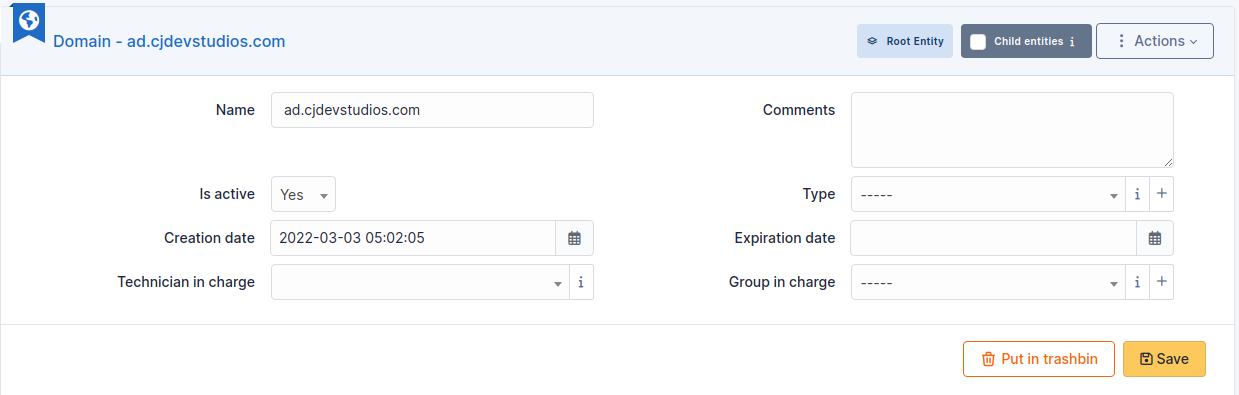
A Domain object represents an Internet domain, with its name, expire date… This object can be attached to other objects in GLPI assistance (tickets, problems, changes).
The different tabs
Impact Analysis
Impact analysis enables an infrastructure diagram to be drawn up, showing the dependencies and impacts in the event of equipment loss. This can be saved and exported
Records
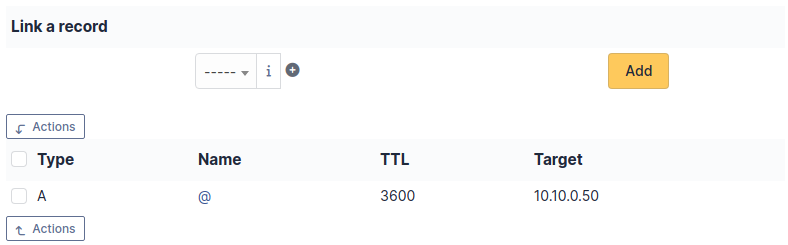
This tab allow to create or select a domain record to be associated with the domain. For more information, go to domains records
Items
List of all other linked GLPI Items. You can manually add an item by selecting it from the drop-down list.
Management
Management of financial and administrative information, this information is visible in the ‘Management’ tab on the object form.
Tickets
View all tickets linked to the computer
Problems
This tab refers to all hardware-related problems. Problems can also be linked to tickets, projects, etc. This allows you to have a complete scenario when necessary.
Changes
Changes lists all changes related to a material. From this tab, you can’t link a change directly, you can do it from Assistance > Changes > Items. You can create a new change from this page, which will be linked to the material you have selected.
Contracts
GLPI supports contracts management, in order to manage contract types such as loan, maintenance, support…
Contracts management allows to:
make an inventory of all contracts related to the organization assets
integrate contracts in GLPI financial management
anticipate and follow contract renewal.
Documents
The document tab lets you link different types of file to a material (PDF, txt, png, etc.) You can attach a document already uploaded to GLPI or add a new one directly from this tab.
Certificates
Link a certificate to your registration
History
The History tab is used to show any changes made to an item. The following information about the changes is available:
ID of the change.
Date and time the change was made.
User who made the change. If this field is not filled, it means that the action was done automatically (For example: automatic inventory update).
Field that was changed.
Description of the change that was made.
The description of the change represents either the difference between the old and the new value (For example with location field: Change HQ to Remote Office A), or the explanation of the action which was carried out (For example: Uninstallation of a software: « Gimp 2.0 »).
Note
For dropdowns or objects with a parent/child relationship, the modification of a child will appear in the history of the parent element.
All Information
For an item, all information is displayed on one page from the All tab. This shows all of the tabs of an object’s form in one view, one below the other.